
How to bulk add users

Users can be added to a group or groups in bulk to speed up the configuration process. This is also helpful when you are migrating users to Inugo. Rather than invite each user one by one, this process allows you to upload an spreadsheet file (.csv) of user email addresses to bulk invite users to a group.
Process
Log into the customer management portal and select permissions from the left side menu.
In the top bar options, select roles
Select import users.
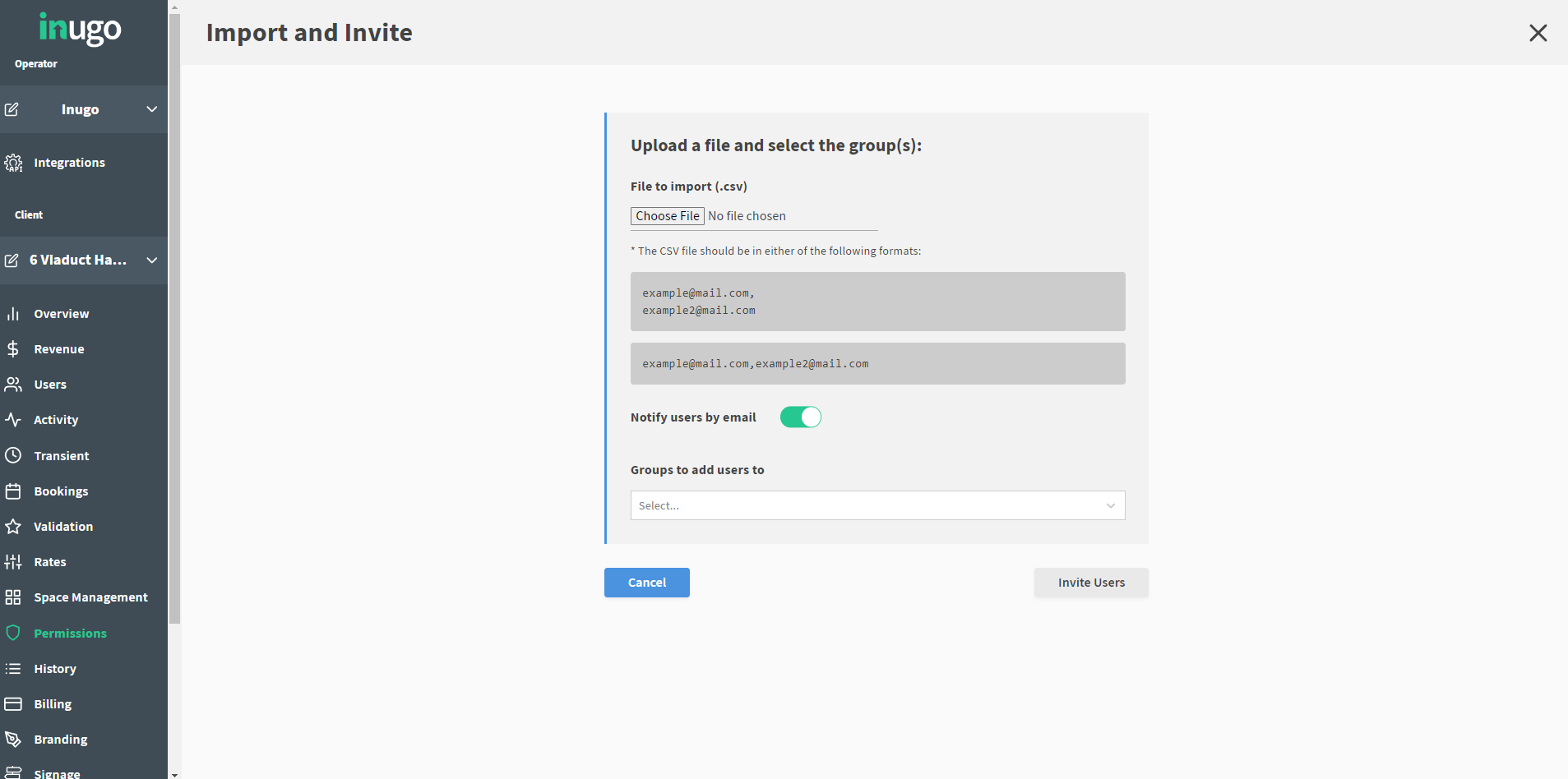
Once you've selected this tab, a pop-up screen appears. Select the "Choose File" button. (Note: The email addresses in the file has to follow the displayed format)
Locate the .csv file in your computer
Select the appropriate .csv file
If you would like to notify the users by email, toggle the notify users by email to green. If you want to disable email notification, turn this feature off to grey*. The default setting is to notify.
Select the groups that the user belongs to.
Lastly, select invite users to complete the process.

*Unregistered user email address will always be sent a notification to register in the app.
CSV format
The .csv file containing the user email list must be formatted as one of the following formats:
example@mail.com, example2@mail.com |
example@mail.com, example2@mail.com |