How to update site operating hours?

Site hours dictate when users or potential customers can enter and use a site. When a site is open, a green icon will appear on the user's map which allows a user to begin and end parking sessions. When a site is closed, the icon will be grey and the user won't be able to begin a parking session.
Process
Log into the customer management portal and select site settings in the left menu.
Search and select the site you want to update.
In the top menu select hours.
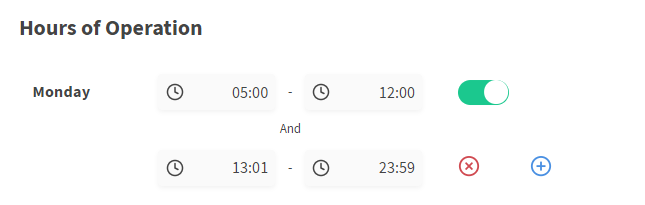
For each weekday, configure the hours of operation. You can add a time block to a day if there is a period within the 24 hours that is not operational. You can see an example of this below.
Toggle to grey any days that are not operational
If the operating hours are continuous, you can select apply to all to replicate the hours from Monday to Sunday.
If the site is closed on a particular day, for example for cleaning, you can add a custom day to set special operating hours. and configure that to be closed.
Select update hours to complete the process.