
How to configure bay allocation

To configure bay allocation you need to create bays in the customer management portal. A bay is a single parking space within a space block. You can configure bays so that these are allocated to parkers when they book a parking space in a space block.

Once you have set up bays on a space, these will be automatically allocated when a booking is made on that space.
How to create a bay
Process
Log into the Customer Management portal and select space management from the left side menu.
In the top bar options, select Bays.
Select create bays.
Select the space block that they bays belong to
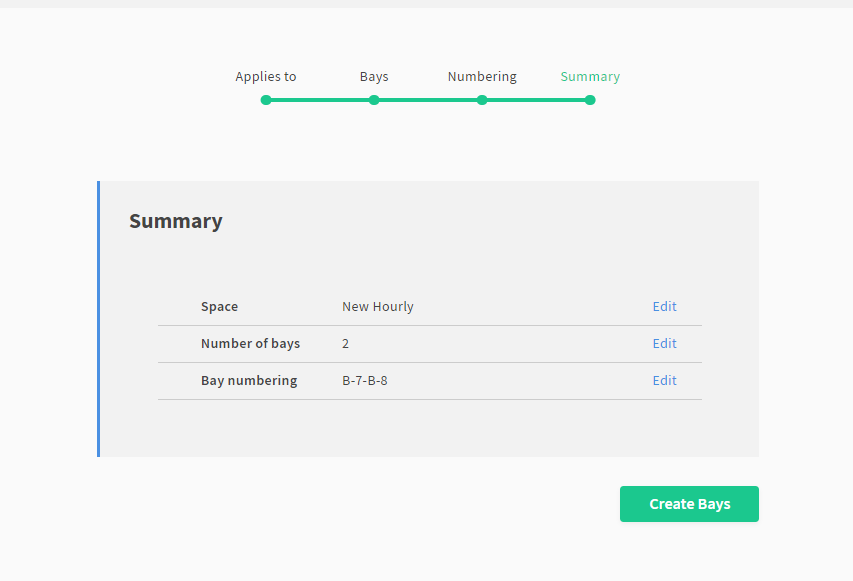
Enter the number of bays in the space block.
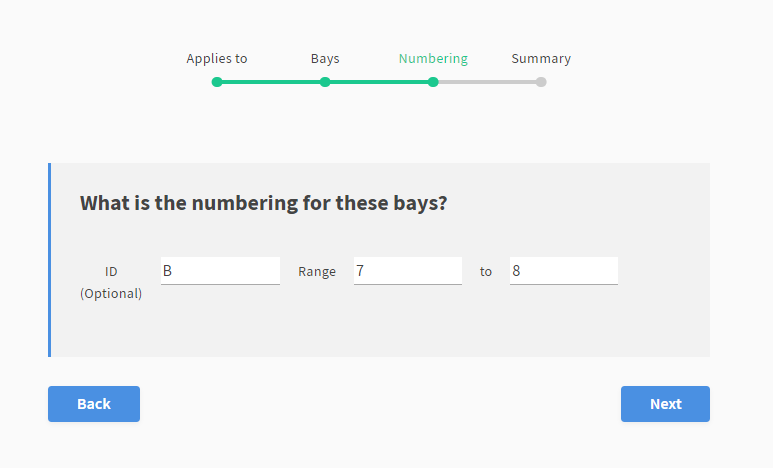
Configure the bay numbers to the specified space block.
The ID is an optional pre-fix if this is on the location i.e., B for basement.
Use the range to set the numbering protocol. As an example, does this space block start from 7?
Example of bay numbering configuration:
How to manually assign a bay
Process
Log into the Customer Management portal and select space management from the left side menu.
In the top bar options, select Bays.
In the table, choose a bay you have created, using the above example choose either B-7 or B-8.
Click on the ellipse ‘…’ on the chosen bay
select assign.
Enter the email address of the registered user you want to assign the bay to.
Frequent Queries
How do I configure a bay to automatically be assigned when a user books?
Once your bays are set up on the space, they will be automatically assigned when a user books.
Can I reassign a bay that has already been assigned to a new user?
Yes, go to the bay and click the ellipse to unassign from the current user. Once unassigned, you can then select assign and assign the bay to the new user.