
How to add or edit special instructions?

Special instructions allow you to engage with your customer and provide them with key information to improve their experience.
Use cases for special instructions
You can use the special instructions for a variety of reasons:
Update the parker of maintenance i.e., if a specific exit is not in use, pre-empt the parker to the right exit to avoid an unhappy customer.
Inform the parker of safe routes to follow i.e., On an especially icy day, if you have gritted one exit, you can direct the parker to use the gritted exit and watch for icy conditions.
Update your parkers of offers. i.e., you offer premium starred spaces to a select group, tell them to ensure they have parked in a premium bay.
Update the parker of relevant information i.e., on an event day, ensure you have communicated the time that the site closes to the public.
How to create a special instruction
Process
Log into the customer management portal and select site settings from the left menu.
Search and select the site you want to add instructions to.
Select instructions in the top menu.
Select add special instruction.
From the menu, select "Do", "Do Not", "Information", or "Warning". This will configure the icon on the special instruction.
Give the instruction a title which will appear in bold in the message.
Add your special instruction text to appear in the app.
Assign to the group that you want to see the instruction.
Select create to complete the process.
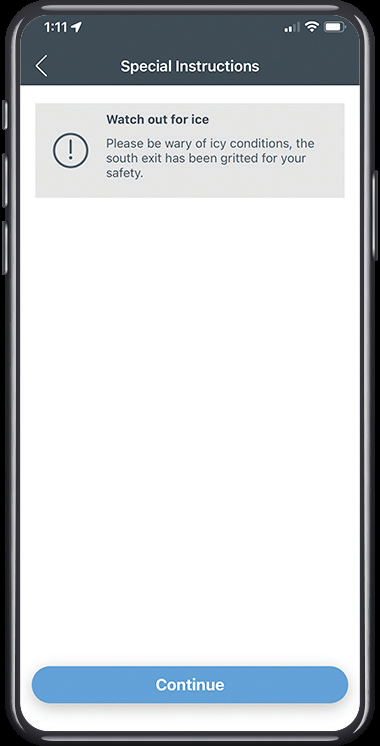
This is how special instructions appear in the app.
How to edit a special instruction
Process
Log into the customer management portal and select site settings from the left menu.
Search and select the site you want to add instructions to.
Select instructions in the top menu.
Select the instruction you would like to edit and click the ellipse ‘...’ and select edit.
Edit the sections you would like to change.
Select update to complete the process.