
Revenue & Parking Charges

When you use the Inugo payment gateway, all charges from monetised transactions settles into your chosen nominated bank account, you can view these transactions in the revenue dashboard.
Billing details
We have the ability to customise additional charges, customer receipt settings and revenue report details, through configuring the billing details against an account in the customer management portal.
Frequent queries
What are billing details?
The billing details determine any additional charges which are to apply to a parker (such as convenience fees or card fees), any restrictions on accepted credit card types, and the information that appears on parker’s receipts such as billing address, company name and tax registration details. This is also where we configure the payment provider credentials.
Who sets up the billing details?
Billing details are configured by Inugo on your behalf.
Where are billing details associated to in the Inugo system?
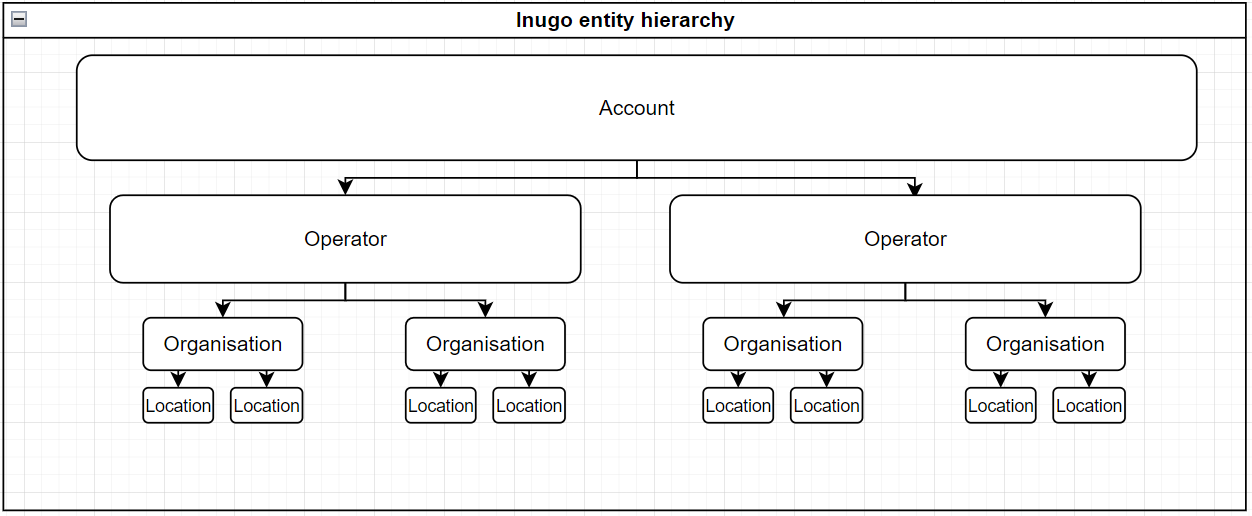
Billing details are associated to an account. An account is the top hierarchy in our set up. See the below chart for clarity. Inugo invoices accounts.
What billing details can be customised?
You can request multiple billing details be set up against your account.
The convenience fee table is customisable to what fees you wish to charge to the parker.
You can configure payment processing fees to be charged to a parker
You can adjust the accepted card types.
Revenue dashboard
The revenue dashboard in the customer management platform lists all the past financial transactions. You can export the information from this page to a .csv format for your record keeping.

Inugo also offers integrations for ERP systems. Speak to your account manager if this is something you are interested in.
Frequent queries
How do I use filters on the revenue dashboard?
You can customize the transactions you can view by editing the filters at the top of the page. You can choose to select site by site, or extract a consolidated report of transactions across all sites. Use the date selector to set the date range of your report. This will filter the settled on date.
Press download to export the transactions. This triggers a report to be emailed to you.
What activities can I do from the revenue dashboard?
Refund a customer
Retry a payment
Resend receipt to customer
What do the totals on the revenue dashboard mean?
The top of the revenue page contains a total summary based on your set filters.
This table shows you what these mean:
Name | Description |
Total transactions | The sum of transient and booking transactions. |
Transient payments | The number of transactions from casual/ on demand parkers. |
Booking payments | The number of transactions from leases/booking/reservations |
Refunds | The number of refunded transactions |
Unpaid | The number of unpaid transactions |
Parking Charges | The total amount charged through the Inugo payment gateway. |
Credit Card Fees (Charged) | The total amount charged to the parker as a credit card fee. |
Convenience Fees (Charged) | The total amount charged to the parker as convenience fees. |
Unpaid | The total amount of outstanding fees from unpaid parking sessions. |
Refunded | The total amount of money refunded to customers. |
Total user charges | The sum of amounts charged to parkers. |
Convenience fees (If set to paid by operator) | The total amount of convenience fees that are allocated to the operator as charges. This is not charged by Inugo and is configured for your reporting purposes only. This does not reconcile to the transaction fees that are applied to the operator by Inugo. |
Payment Processing Fees (deducted) | The calculated amount of payment processing fees deducted as configured in the billing details on your account. This is only relevant if Inugo are the merchant of record. |
What do the headings in the revenue export mean?
When you download transactions, you will receive an email with a link to download the export. The export will include all the transactions from the filtered period.
Column Name | Description |
Paid | Indicates if the transaction was paid or failed |
Site(s) | The site that the transaction was in relation to |
Transaction ID | A unique identifier of the transaction |
Type | Parking session - a transient/ on demand casual parking session User Lease Payment - A booking payment |
Validated | Indicates if the session was validated (via beacon) |
Parking Charge | The amount charged to the parker that relates to the rate table of the site and their duration. |
Credit Card Fee | The amount charged to the parker that is designated as a credit card fee |
Convenience Fee | The amount charged to the parker that is designated as a convenience fee |
Promotion Discount | The amount deducted by use of a promotion discount (promo code) or validation. |
Total User Charge | The total amount charged to the parker |
Payment Processing Fee | The amount designated to payment processing fees as calculated from the billing details if Inugo are the merchant of record. |
Refunded | The amount that is refunded |
Credit Card Type | The card type associated with the transaction |
Paid On | The date that the transaction was paid on |
Settled On | The date that the transaction settles into the merchant account |
Receipt | The receipt number provided to the parker |
Invoice | The invoice number provided to the parker on their receipt. |