
Inugo Validation and Promotions

Inugo supports discounting parking sessions using our validation beacons or by applying a promotion code.

Validation of parking is supported if the parker is using the app, and if they have an open session. If a parker pre-books, they will have already paid for parking and validation will not be available.
Currently promotions can only be redeemed on transient sessions.
How validation works
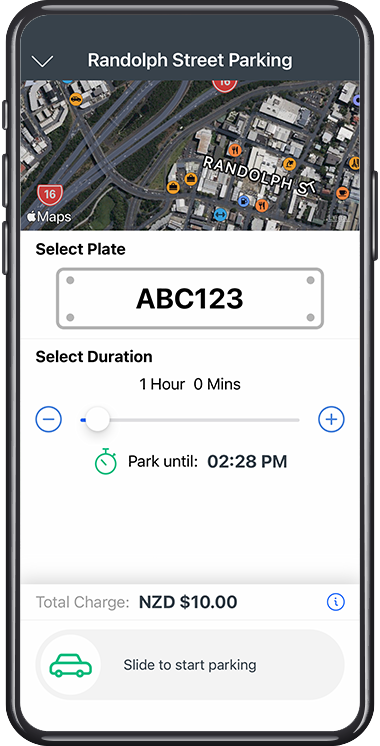
Parker uses the app to start a session
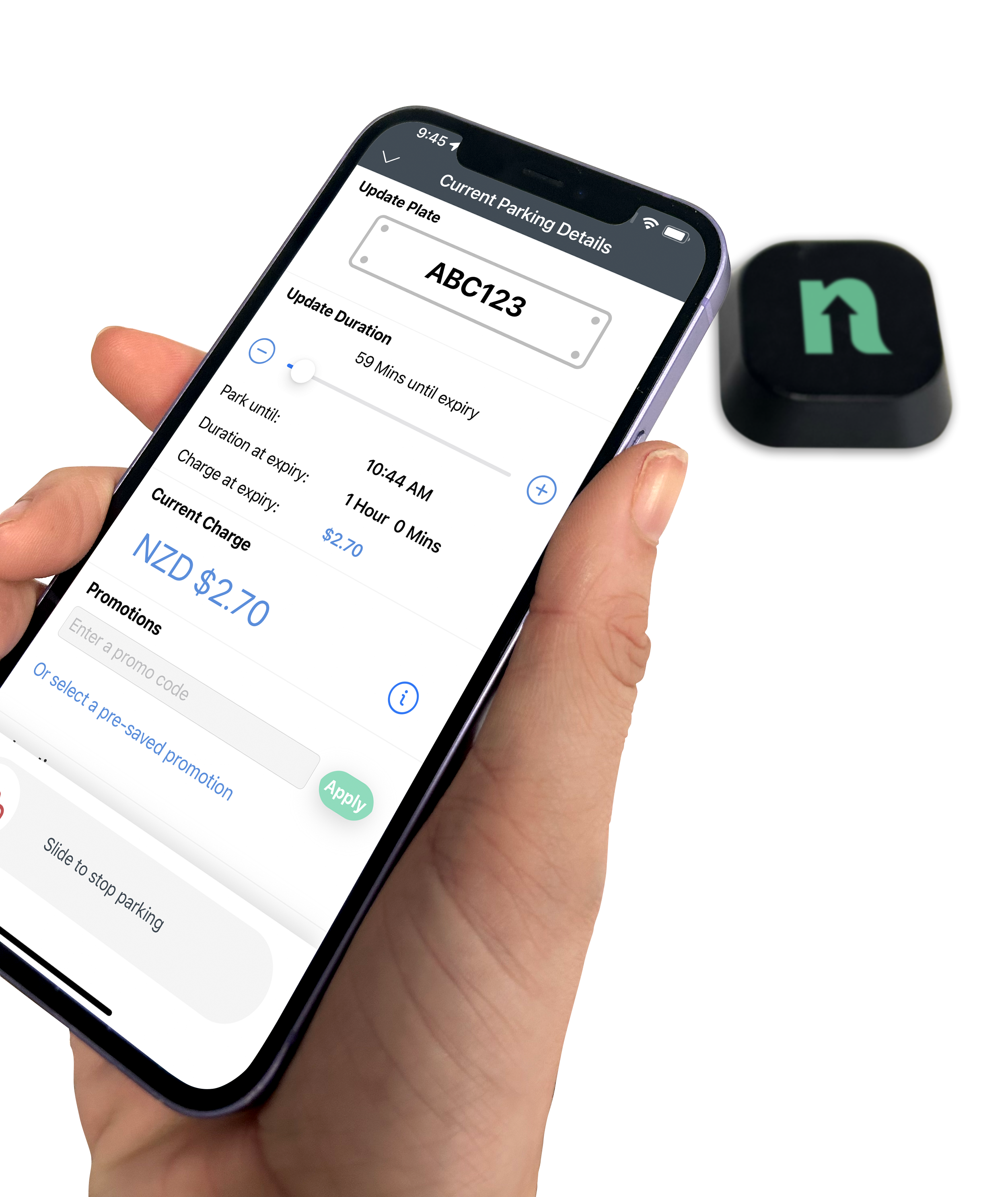
Parker goes to a destination where there is a validation beacon and places their phone next to the beacon with the app open
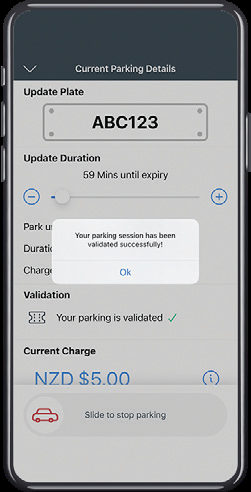
Validation is applied to their open session
A parker’s ability to physically access the validation beacon and where they have parked determines their ability to validate, often validation beacons are placed at reception desks so that visitors can validate when they check-in for an appointment. The beacons require the user's phone, with the parking app open and in a valid parking session, to be placed within 5cm of the phone for validation to occur. The location of the beacon needs to be considered when wanting only certain groups of parkers to validate.
Key terms
Beacon Unique IDs
The Unique ID is a four-digit code used to identify validation beacons. The Unique ID is typically labeled on the side of the beacon.
Unique IDs are case sensitive. When setting up a beacon, make sure the Unique ID matches the exact printing on the label.
Validation Discount Stacking
When validation discount stacking is enabled in site settings, validating more than once (using multiple beacons at different retailers, etc.) will stack the applicable discounts. This can potentially bring the price of a parking session down to $0.
Types of validation
Add user to a group
This validation setting will add a user to a specified group. When they are added to the group they acess the group’s rates, access permission and settings.
Percentage off the applicable transient rate
This validation allows a parking charge to be reduced by a percentage. It does not reduce the parker fees (convenience or credit card).
Fixed amount off the applicable transient rate
This validation allows a parking charge to be reduced by a fixed dollar amount. It does not reduce the parker fees (convenience or credit card).
Change to an alternative rate
This validation changes the rates applicable to the user, to a new validation rate you have configured. Only one validation rate can be applied per parking session, regardless of discount stacking settings. This will only occur if the validation rate is cheaper than the normal charge.
How promotions work
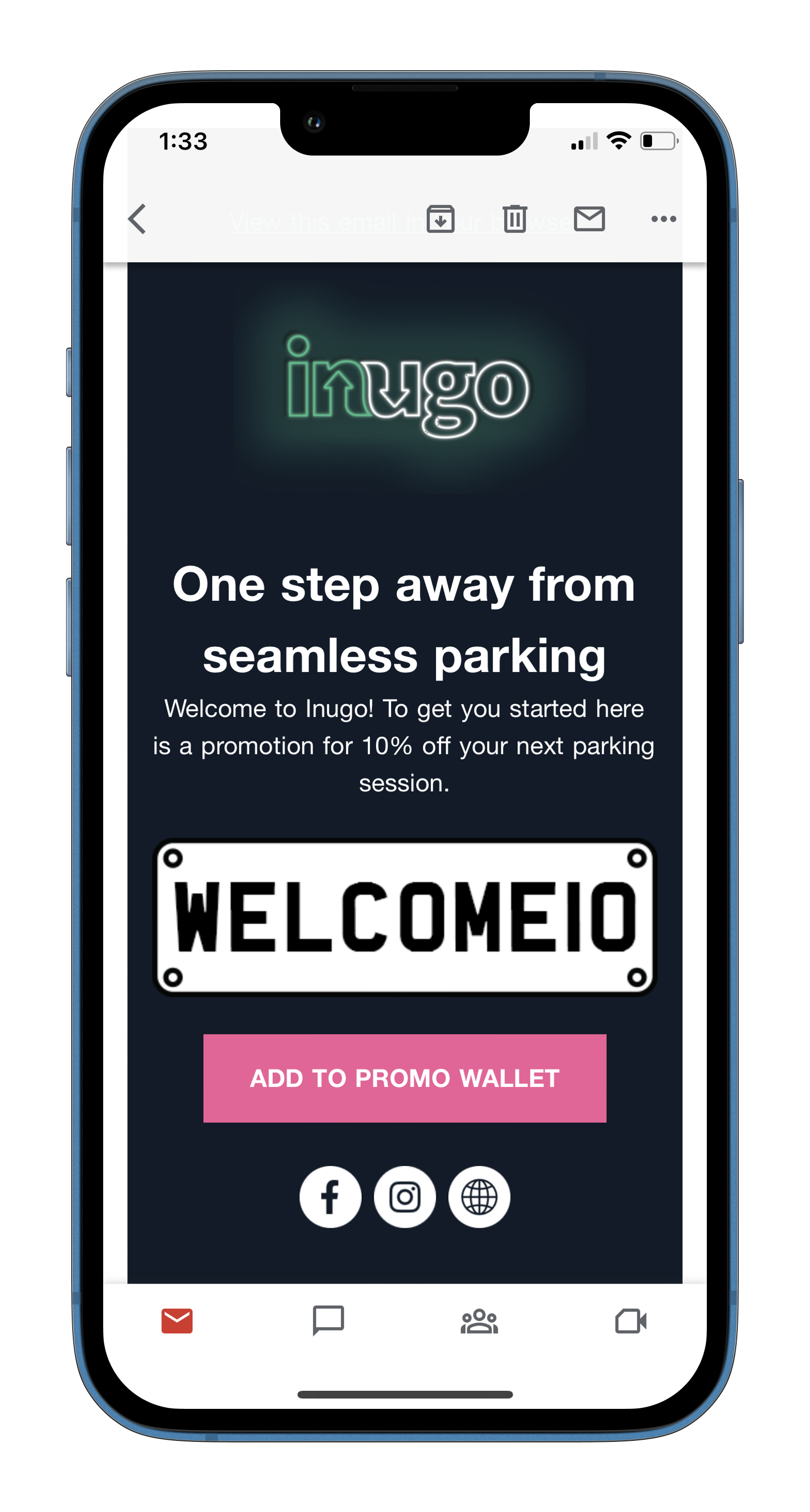
Parker receives a promotion code, for example via email
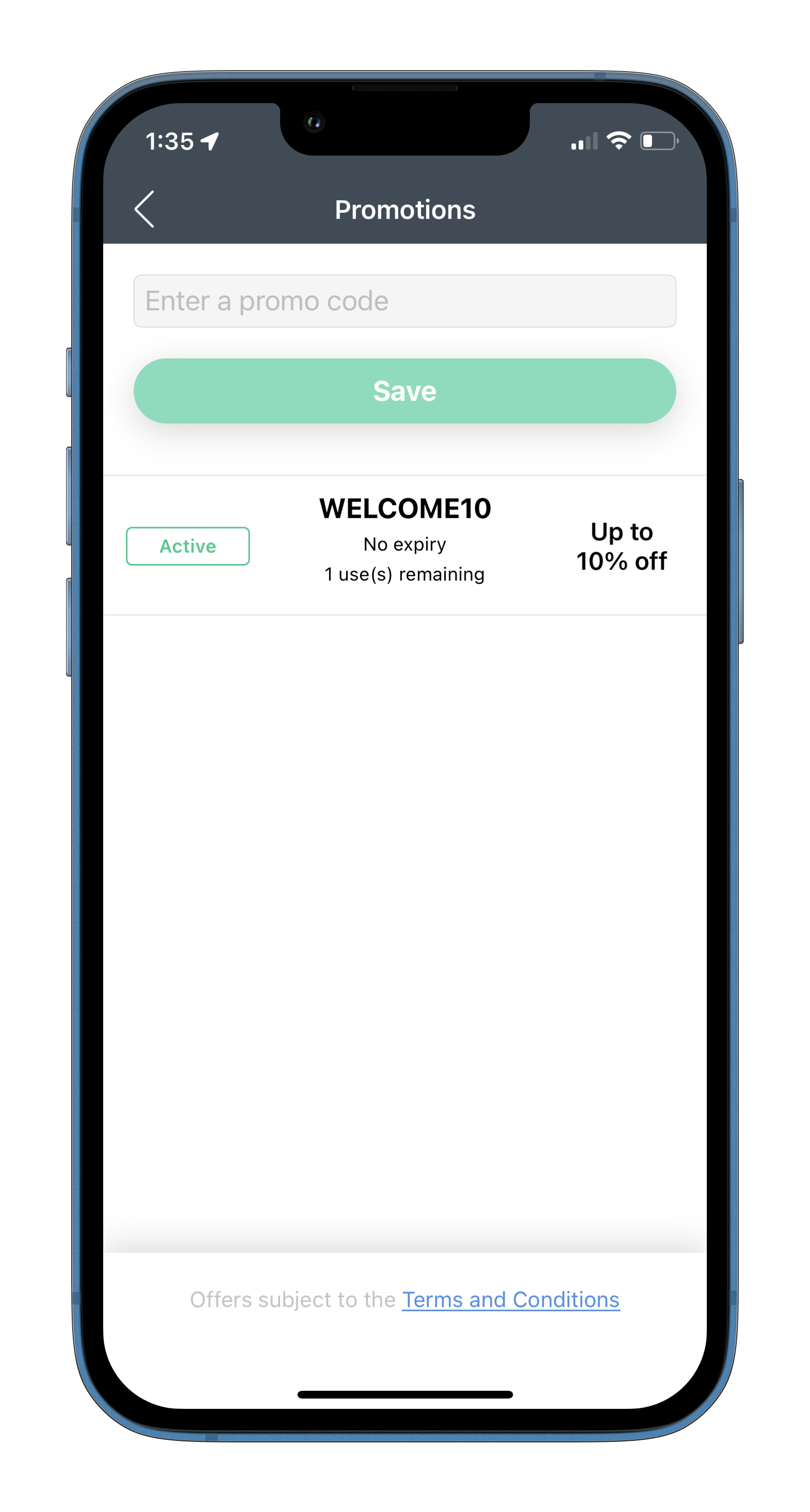
Parker adds the promotion to the promotion wallet in the app
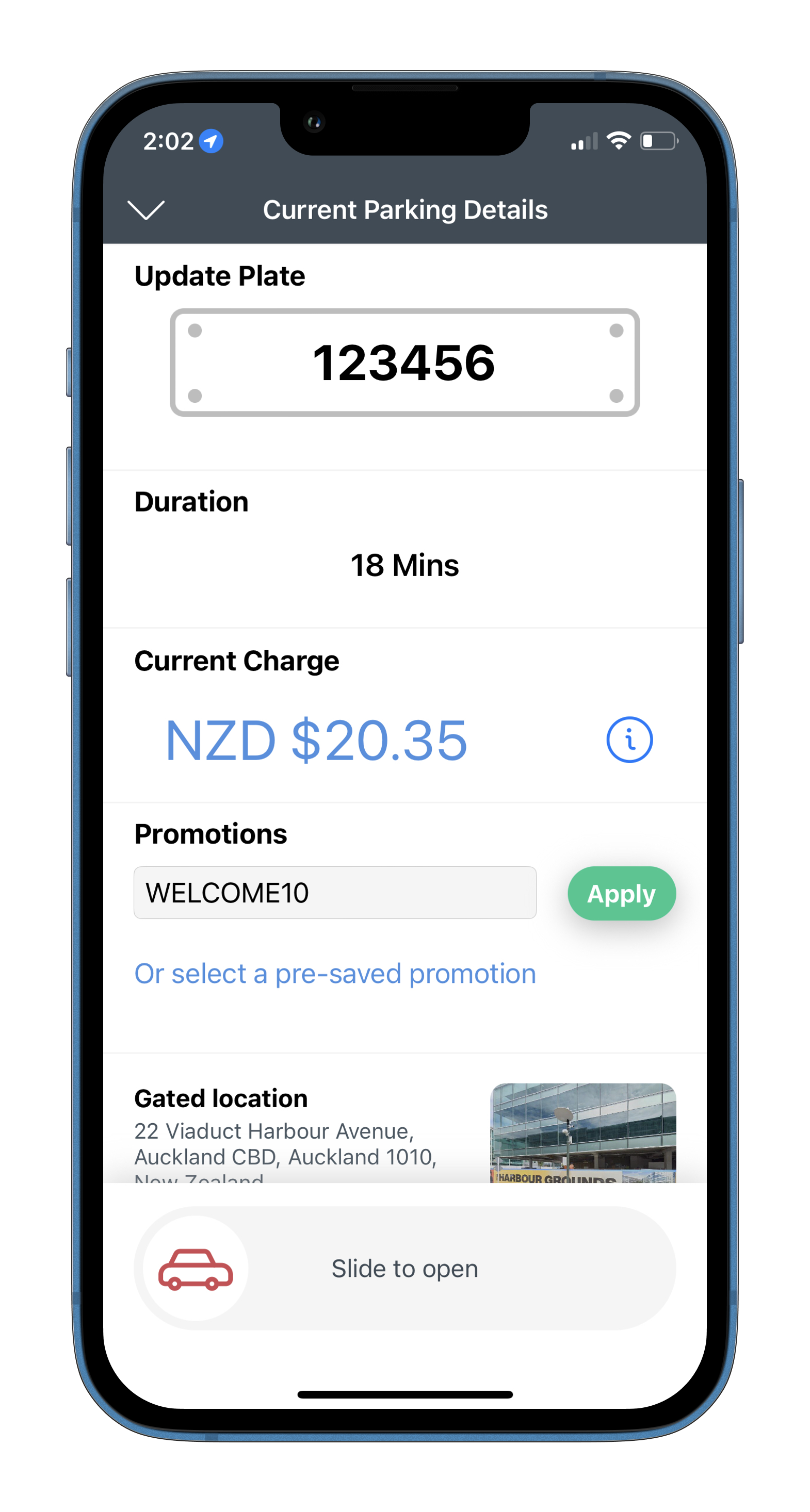
Parker applies promotion to session
Types of promotion
Percentage off the applicable transient rate
This promotion allows a parking charge to be reduced by a percentage. It does not reduce the parker fees (convenience or credit card).
Fixed amount off the applicable transient rate
This promotion allows a parking charge to be reduced by a fixed dollar amount. It does not reduce the parker fees (convenience or credit card).
Duration - hours
This promotion allows for a set number of complimentary hours in one session. As an example if a promotion has 2 free hours, and a parker parks for 1 hours and redeems the promotion, the promotion will be removed from the parker’s wallet. They do not retain the unused hour as a separate promotion.
Duration - days
This promotion allows for a set number of complimentary days in one session. As an example if a promotion has 2 free days, and a parker parks for 23 hours and redeems the promotion, the promotion will be removed from the parker’s wallet. They do not retain the unused day as a separate promotion.
Validation in the customer management portal
Validation History
Allows you to see the history of validations using the filters.
How do I use filter on the revenue dashboard?
You can customize the transactions you can view by editing the filters at the top of the page. You can choose to select site by site, or extract a consolidated view across all sites. Use the data elector to set the date range of your report. This will filter by the time of date of the validation being applied.
Press download to export the transactions. Please note you can only export records 1 page at a time.
What do the totals on the validation history dashboard mean?
The top of the validation history page contains a total summary based on your set filters.
This table shows you what these mean:
Name | Description |
|---|---|
Current validated sessions | The number of open session that have applied a validation. |
Total validated sessions | The total number of sessions in the date range that have applied a validation |
Current promotions on sessions | the number of open sessions with an applicable promotion code applied. |
Total promotions on sessions | The total number of sessions in the date range that have an applicable promotion code applied. |
What do the headings in the validation history page mean?
This table explains what the column names mean.
Column name | Description |
|---|---|
Status | States whether the session is open or closed. |
Session ID | Allows you to view the session associated to the validation. |
Site | The site that the session is on. |
User | The user who has used the validation. |
Type | Either validation or promotion. |
Validation Location | The location of the beacon. |
Discount | The validation type, either percentage, fixed amount or rate. |
Amount | The validation amount. |
Time | The time that the validation was applied. |
Beacons
Allows you to see the beacons that are active against an operator.
What do the headings in the validation beacons page mean?
This table explains what the column names mean.
Column name | Description |
|---|---|
Location | The location name of the beacon. |
Beacon ID | The unique serial code on the beacon. |
Type | The validation type, either percentage, fixed amount or rate. |
Rates | The validation amount. |
Sites | The site that the session is on. |
What activities can I do from the beacons dashboard?
Edit a beacon
Delete a beacon
Add a beacon
Validation Accounts
Inugo enable the operator to create validation accounts which allow a nominated user to view the validation history on their allocated beacons. This allows the validation accounts to report on validation use and monitor for abuse.
What do the headings in the accounts page mean?
Column name | Description |
|---|---|
Name | The name for the account |
User assigned | The user that has access to manage the account |
The user’s email | |
Address | the address for the account |
Beacons | The beacons that the account has visibility of |
Status | Unmanaged (no account user allocated to account) Pending (account owner has not registered) |
What activities can I do from the promotions dashboard?
Add a validation account
edit a validation account
delete a validation account
Promotions
Allows you to see the promotions that are active against an operator.
What do the headings in the promotions page mean?
This table explains what the column names mean.
Column name | Description |
|---|---|
Status | States if the promotion is active or disabled. If a promotion is disabled, this means that the unique code can be used for an active promotion. |
Name | The name of the promotion. |
Promotion Code | The unique code that the user enters to redeem the promotion. |
Type | The promotion type, either percentage, fixed amount, duration days, duration hours. |
User limit | The number of times a code can be used by the same user. |
Code limit | The number of times that the code can be used. |
Availability | The date range that a session needs to be completed within to access the promotion. |
Sites | The sites that can a session can apply the promotion on. |
What activities can I do from the promotions dashboard?
Edit a promotion
Delete a promotion
Disable a promotion
Add a promotion
Import promotions