
How to create an event series transient rate

A transient rate is a rate that applies to a casual parker. Transient rates apply to scan-to-pay and app users who use the “park here” function or have enabled gate opening via camera to automatically start sessions.

Before you start, ensure that Transient Parking is enabled in the site settings. To enable transient parking, navigate to site settings, find your site, under site configuration, toggle Transient Parking to green.
Process
Log into the Customer Management portal and select rates from the left side menu.
In the top bar options, select Transient.
Select a site in the drop down list.
Select add rate.
Give the rate a name i.e., Event day Parking.
Select if the rate applies to all users or is limited to a group. Limiting a transient rate to a group, allows the users in that group to have the new rate applied on their transient sessions. If the rate applies to all users, the rate is public.
Select the rate type Recurring / Event Series Rate.
Select if the rate is a validation rate.
Select the event series that the rate(s) will apply during (you can do this later if the event isn’t set up yet).
Set the rate to Standard type
Set the rate interval to ‘Exact Event Duration’
Enter the rate amount.
Select if flat rate rules are enabled.
Select Create Rate to create the rate and apply it to the selected event series.
Frequent Queries
What do the different colours mean on the rate calendar?
Light Blue
Earlybird rate
Casual/Daytime rate
Dark Blue
Afterhours rate
Afterhours Earlybird rate
Red
Complex rate
One off Event rate
Purple
Event series rate
Yellow
All Validation rates
Black
All Group rates
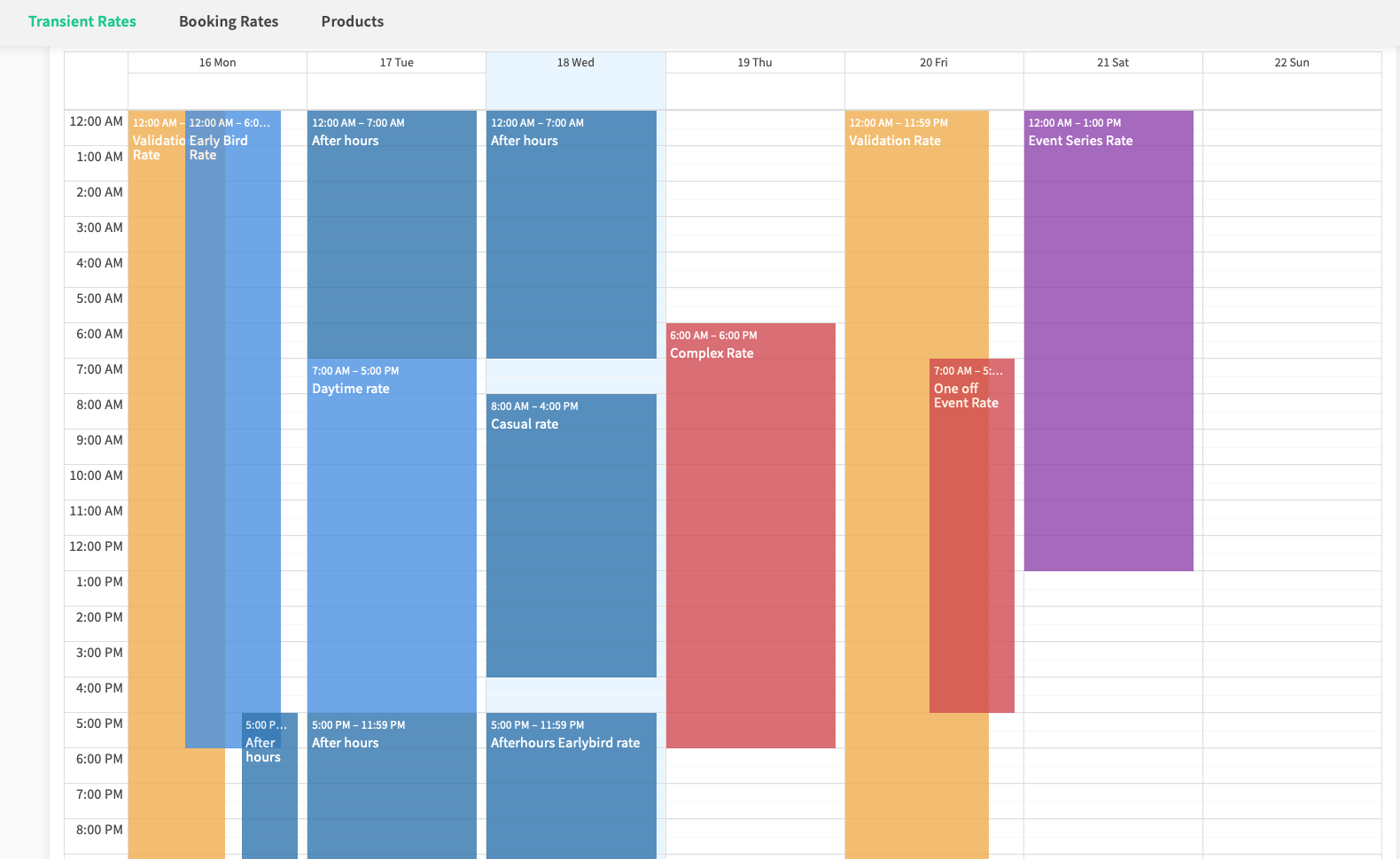

Why cant I find my event series rate?
Event series rates will show on the calendar when the rate is applicable. To see this on the calendar, first ensure you have it applied on an event series, then navigate on the calendar to a day where it has an event scheduled.
How do I know which rate applies when?
You can use the rate tester to test your rates and ensure they are charging correctly.
Why can I only save one rate type?
You cannot have overlapping rates on the same day of the same rate type unless they are associated to different groups on a site.
Varied rates
How do I configure my varied rate correctly?
When you configure a varied rate, the amount that you put for each hour should account for the amount charged for the pervious hour. As an example, if you are charging $4 for 1 hour; $11 for 2 hours and $15 for 3 hours, your varied rate should be configured as first hour $4, second hour $7, and third hour $4.
How do I set up a rate so the first 30 minutes is free?
Use the varied rate and set the rate from 0 mins to 30 mins as $0.00 per 30 mins with a max of $0. You can then enter the paid rates from 30 mins.
What does it mean when it asks if I want my varied rate to charge a first block once per day?
This setting allows you to set an initial amount to be charged once a day. We primarily recommend this when there is a “free period” on the lot. This prevents fraud if a user stops and starts a session multiple times to access the free parking continuously in one day. When toggled, a user can only get one free period that day. The day period is based on the time zone of the site. For example, if this were enabled at a gym, offering the first hour complimentary. a user might go to the gym in the evening and access the first hour free of charge and return the next morning and again have the first our free of charge, despite this being within 24 hours. However, the gym user would not be able to have multiple free periods on the same day.